


I don’t have many gripes with the new Forza Horizon game, but if I had one (and I do), it’s in the customization and lack of factory options available. It’s an issue that’s plagued both the Motorsport and Horizon titles since the very inception of the franchise and the problem still persists in the newest Horizon entry. I’m not here to talk about that though (as I’ve got a separate article planned on that very subject later), I’m here to tell you how to recreate a factory Viper color. Specifically, Snakeskin Green.

If you’re unfamiliar with the color, then have a look at the photo above. What you’re seeing is almost a lime green primary color with a gold-like undertone. That undertone is important because it’s what sets SSG apart from most other greens (including other Viper ones like Stryker Green). It’s also what makes SSG so difficult to recreate within Forza…
Thankfully, I think I’ve cracked the code, so let’s get into how you make this complex color in FH5.
The Deets

The very first thing you need to know is that this isn’t a Metal Flake (or metallic) paint job, as there are no little speckles within the paint. The paint type I used is Two-Tone Polished. It gives you the same effect of the paint changing slightly in the light that Metal Flake does whilst also allowing us to dial in that gold undertone more easily.
The next thing you’re going to do is hit X or whatever is bound to Dual Color Fine Tune. This setting is absolutely vital to recreating SSG as close as we can in FH5, so pay attention. In the Lowlight menu, change the Hue to 0.18. Don’t worry, the menu is deceptively named. “lowlight” is akin to undertone, that’s why the hue is set more in the yellow side than the green side (to recreate that gold I mentioned earlier). Adding the right shade of green is done in the Highlight menu, which we’ll get to later.
In Saturation and Brightness of the Lowlight menu, you will crank (or leave) both of them all the way up. Unfortunately, I haven’t found a way to get close to the level of vibrancy found in the IRL undertone in Horizon 5, so this is as good as it gets.
Now for the Highlight menu, set the Hue to 0.23 and leave or put both the Saturation and Brightness up to 1.00. During my experimentation, these settings seemed to provide the closest match for the real thing. With that said, it’s not perfect…
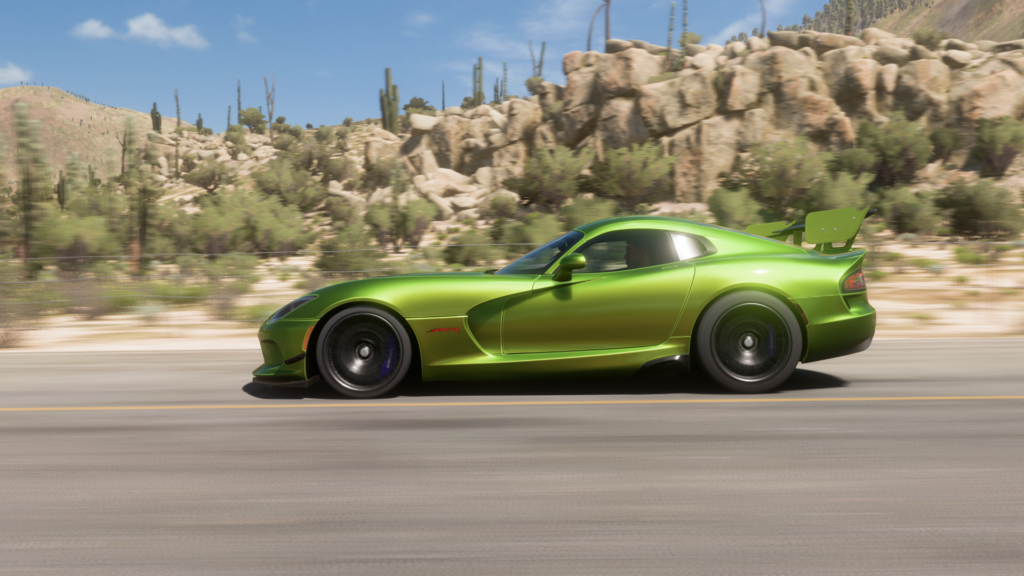
While I’m more than satisfied with the shade of the green and with the undertone in some shots, I do still wish Forza would allow you to create more vibrant colors. The SSG in Forza Horizon 5 isn’t saturated enough in both the green main color and in the gold undertone, leading to it looking just a bit too faded. Of course, you can fix this in the photo mode by increasing the saturation (something I do anyway), but that doesn’t fix how the color looks when you’re driving around.
Then there’s the undertone itself. It tends to create a disappointingly murky look in many lighting scenarios and camera positions thanks to its insufficient saturation.

Despite those gripes though I am rather pleased with the result and I hope you will be too. It looks amazing when on the move and even better in the photo mode with some additional saturation added in. Have a go with these settings for yourself and let me know what you think! Until then, I’ll see you all next time.
Appreciate it. Looks good bro
Thanks Lyan! Hopefully in the next few Forza games they improve their color science and I can get closer. Enjoy!